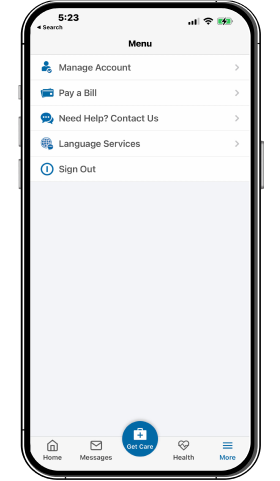
Patients currently using the Florida-based medical network must register for the new myPrivia patient portal to maintain digital access to their health records.
According to instructions released by the network, this transition requires users to register for the new platform using the same email address associated with their existing portal account.
Patients already enrolled in a portal can begin by clicking the registration link sent via email or by visiting the official portal site at https://28757-1.portal.athenahealth.com. After selecting “Create an Account,” users must locate the email with the subject line “Next steps: Patient Portal registration with Privia Health” and click the “Create My Account” button.
Identity verification serves as a mandatory security layer.
Users will receive a code via text or phone call to verify their identity. Upon entering this code, the system will trigger an alert stating, “You already have an account using this email address. Please log in to continue.”
This is a standard part of the migration process. Users should then enter the password from their existing account, potentially authenticating one final time with a secondary texted code to complete the link to the new system.
Patients who do not currently have an existing portal account should contact their practice’s office directly to initiate the registration process.
The process for caregivers and family members differs slightly. Individuals managing an account for a child or family member must first register for their own personal portal before gaining access to others. Once logged into their personal account, caregivers can click the registration link and select “Caregiver or Family Member.”
After entering the required demographic information—including name, date of birth, email, and phone number—the caregiver will receive a registration email from Privia Health.
The system then requires the patient’s details, such as their legal name, date of birth, and phone number. A verification code will be sent to the patient’s phone number, which must be on file in the system’s Quickview.
Once the caregiver sets a new password and completes two-factor authentication, they can switch between their own profile and the patient’s profile using the “Switch To View” dropdown menu located in the top right corner of the portal homescreen.
Worth a look

Maryland Advisory Committee to Discuss AI in Voting Administration
The Maryland Advisory Committee to the U.S. Commission on Civil Rights has announced a series of public meetings...

Deni Avdija Reacts to Portland Trail Blazers Blowout Loss to Spurs
Deni Avdija did not look like a man who had just finished a Saturday night of professional basketball....

Volunteers Honor Hundreds of Black Veterans at Greenwood Cemetery
Volunteers and members of the National Association of Black Veterans gathered at Louisville’s Greenwood Cemetery this Saturday to...

Soleo Health Seeks per Diem Infusion Nurses in Topeka, KS
Topeka Nursing Opportunities in November 2026 Topeka healthcare providers are moving toward specialized home-based care, with new openings...