
Wisconsin DWD wage report submission requires accessing the Employer Service Provider Resource Page, then clicking the Employer Service Provider Online Services link to reach the Employer Service Provider Home page.
Employers must provide contact information, including an e-mail address and telephone number, before uploading wage report files to the department.
The required business information includes the Business Name, Address Line 1, Address Line 2, City, State or Province, Zip Code, Primary Contact Name, Primary Contact Telephone Number, E-mail Address, and a verified E-mail Address.
For questions about records after processing, secondary contact information can be provided, though it can be left blank if the secondary contact is the same as the primary file upload contact.
When selecting the report type, options are Original Wage Report, Replacement Wage Report, or Appended Wage Report; replacement and appended files must be limited to a single employer, quarter and year.
The online application can process text files in a tab-delimited format similar to the WI UI Format, allowing conversion from Excel files.
The Excel file must include specific data organized in columns: A (Employer UI Account Number, 10 digits), B (Reporting Period Quarter Year, 3 digits), C (Social Security Number, 9 digits), D (Last Name, 10 characters), E (First Name, 8 characters), F (Employee Quarterly UI Total Gross Wages, 9 characters), and G (Record Code, 2 characters), which must always contain “01.”
Wage amounts in Column F must contain a decimal point formatted to two decimal places without commas.
The process involves creating the wage report in Excel, removing row 1 column headings before saving as a tab-delimited format, and then using the Browse button on the Wisconsin DWD site to attach the file before clicking Submit.
ProPay generates UCT-101 Report wage reporting files for Wisconsin quarterly unemployment insurance reporting, which are uploaded through the Wisconsin Department of Workforce Development SUITES portal at https://unemployment.wisconsin.gov/SUITESPortalWelcome/EmployerPortalWelcome.aspx?target=TaxWageFilingInfo.aspx.
ProPay saves the UCT-101 file in the format required by the Wisconsin SUITES portal, typically in the default Mag Media folder, such as `C:\PAYSOFT\PROPAY26` https://help.paysoft.com/08-state-wage-filing/wi-wisconsin-wage-report.html.
For instructions on wage report file upload, visit https://dwd.wisconsin.gov/ui/esp/wageuploadinstructions.
If an account number is 123456-000-7, column A should contain 1234560007.
Do not combine the last and first name in one column.
Do not use punctuation.
Parts of a compound surname must be connected by a hyphen.
Do not separate leading letters, such as “O” or “Mc,” from the rest of the surname.
If an employee has only one name, such as Cher, enter it in the Last Name column.

If a numeric suffix applies, use roman numerals, such as II, III, or IV, or V.
Source 1 states that a screen appears requiring contact information before a file can be uploaded to the department. Source 3 confirms that a screen also requires providing contact details prior to file submission.
Source 4 details that the file is saved in the default Mag Media folder, typically `C:\PAYSOFT\PROPAY26`.
Source 4 specifies that to create this file, one must open ProPay and navigate to Client Functions > Electronic Functions > Magnetic Media, selecting State Quarterly Magnetic Media Filing.
To create the UCT-101 Report File, go to Client Functions > Electronic Functions > Magnetic Media in ProPay.
Select State Quarterly Magnetic Media Filing from the dropdown menu.
Select the client(s) intended for the filing upload.
After creating the file, print the internal report, either detailed or summary, for record-keeping.
The Wisconsin Department of Workforce Development supports original, replacement, and amended filings.

K-State Football Falls in 1st Round of Division II Playoffs
Kentucky State University football fell short in the first round of the Division II playoffs for the second...

Washington Officials Condemn ICE Arrest of Two Passengers Boarding Flight at Seattle Airport
On Saturday, Immigration and Customs Enforcement agents detained two passengers on a jet bridge at Seattle-Tacoma International Airport,...
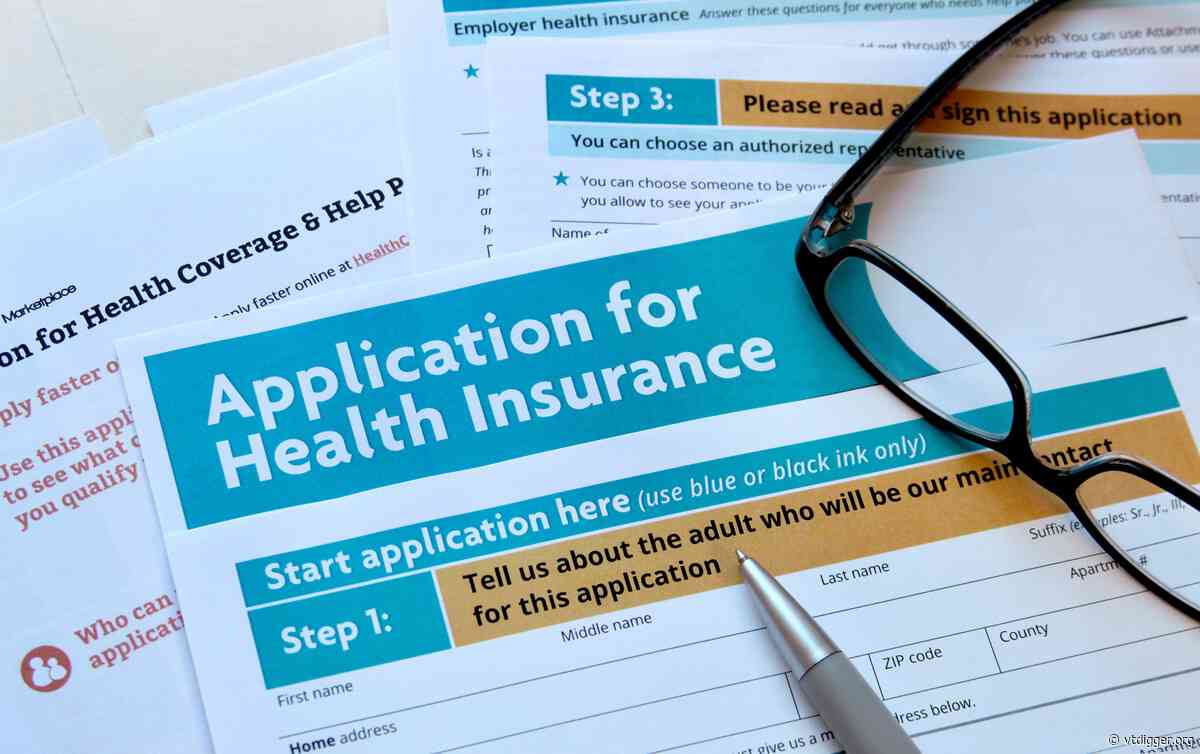
Vermont State Employees’ Health Insurance Premiums Increase 9% Next Year – VTDigger
Starting Jan. 1, 2027, health insurance premiums for roughly 26,000 Vermonters enrolled in the state employees’ plan will...
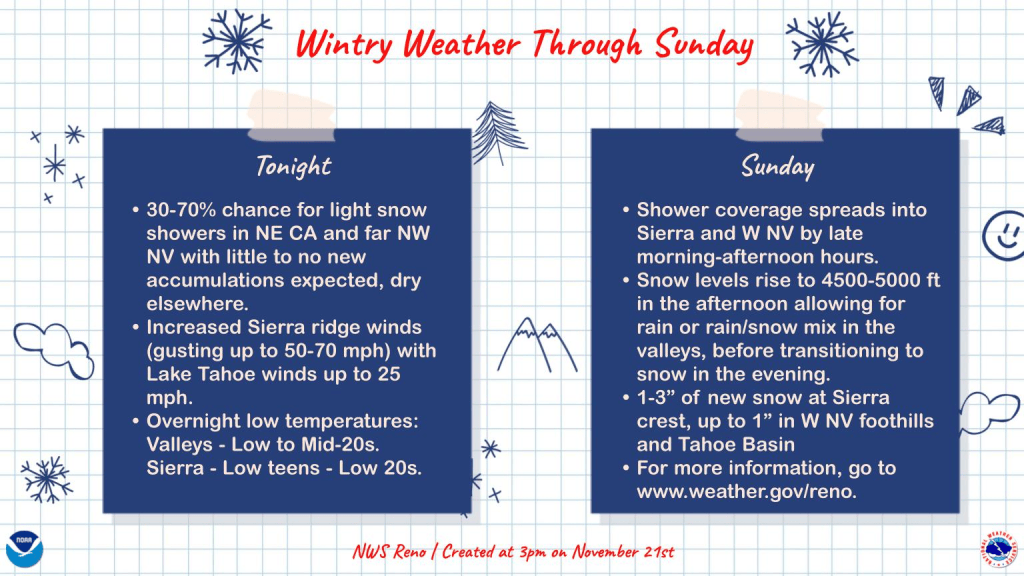
Carson City Sees Light Rain Snow Overnight Through Sunday
As the National Weather Service reports, a mild weather system will produce intermittent valley rain and snow from...