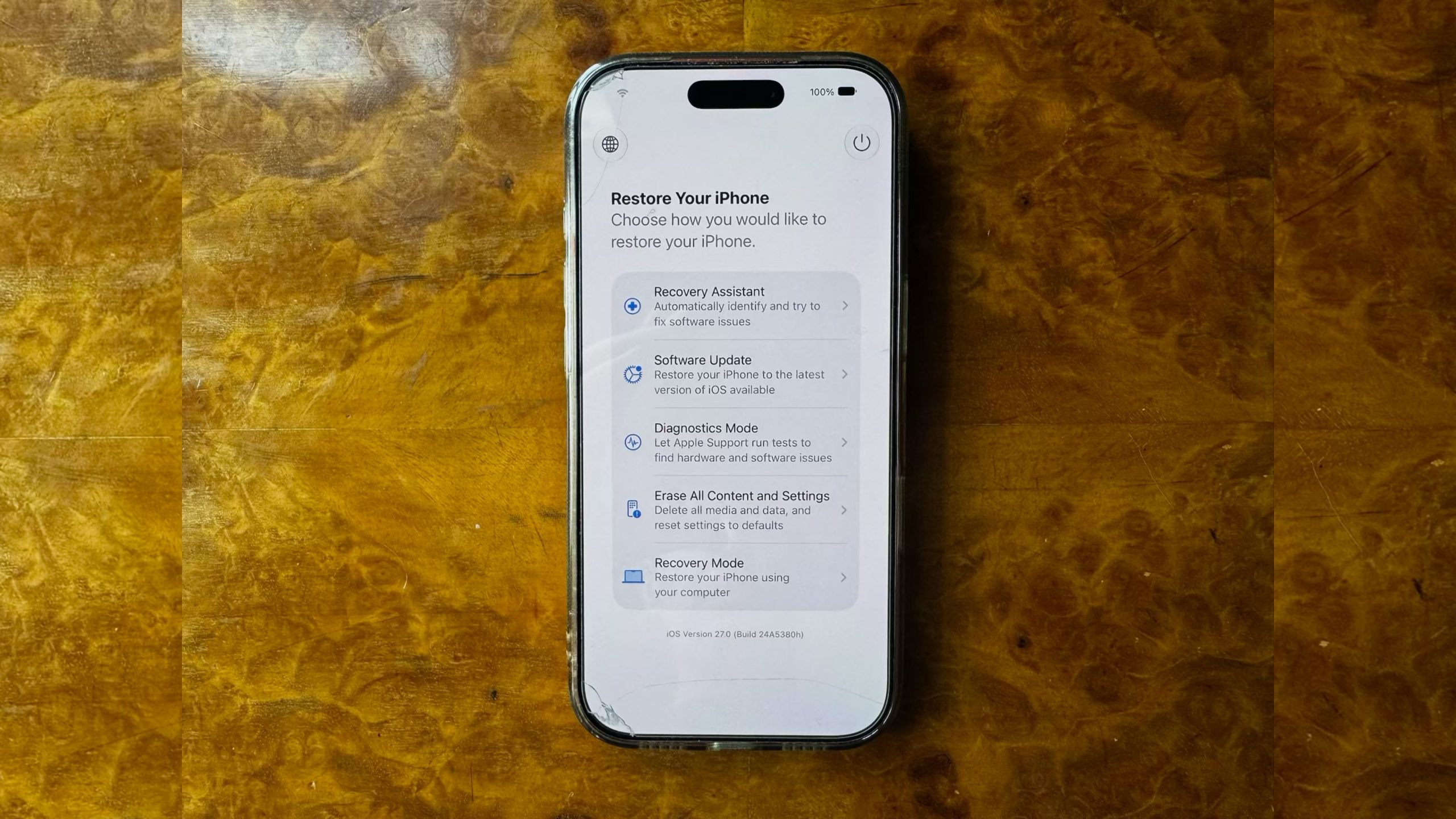
Apple is introducing a new, standalone recovery environment for iPhone and iPad in iOS 27 and iPadOS 27. Currently available in beta, the feature allows users to boot their devices into a dedicated recovery interface without the need for a Mac or PC. This update marks a significant shift in how users can troubleshoot and restore devices that are experiencing critical software errors or boot loops.
Independent Device Repair
Historically, if an iPhone or iPad became unusable due to a failed software update or a serious system error, users were required to connect the device to a computer. Restoring functionality typically involved using the Finder on macOS or the Apple Devices app on Windows. With the introduction of the Mac-style recovery mode, Apple has moved these capabilities directly onto the mobile hardware itself. The new environment operates independently of the main operating system. By enabling the device to connect automatically to known Wi-Fi networks, the recovery mode allows for system updates and repairs to be downloaded and installed over the air. This eliminates the dependency on external hardware, a change that provides a practical solution for users who may not have immediate access to a computer during a device failure.

Accessing the Recovery Environment
The method for entering this mode mirrors the process used on Apple silicon Macs. To access the recovery screen:
- Power off the iPhone completely and wait approximately one minute to ensure a full shutdown.
- Press and hold the Side button.
- Continue holding the button as the Apple logo appears; after a short duration, a progress bar will appear.
- Release the button when the “Loading recovery options…” prompt is visible.
Once the device boots into this environment, it displays the battery percentage in the corner of the screen and provides a toolbar for managing the device state, including options to restart normally or change the system language.
Recovery Options and Diagnostics
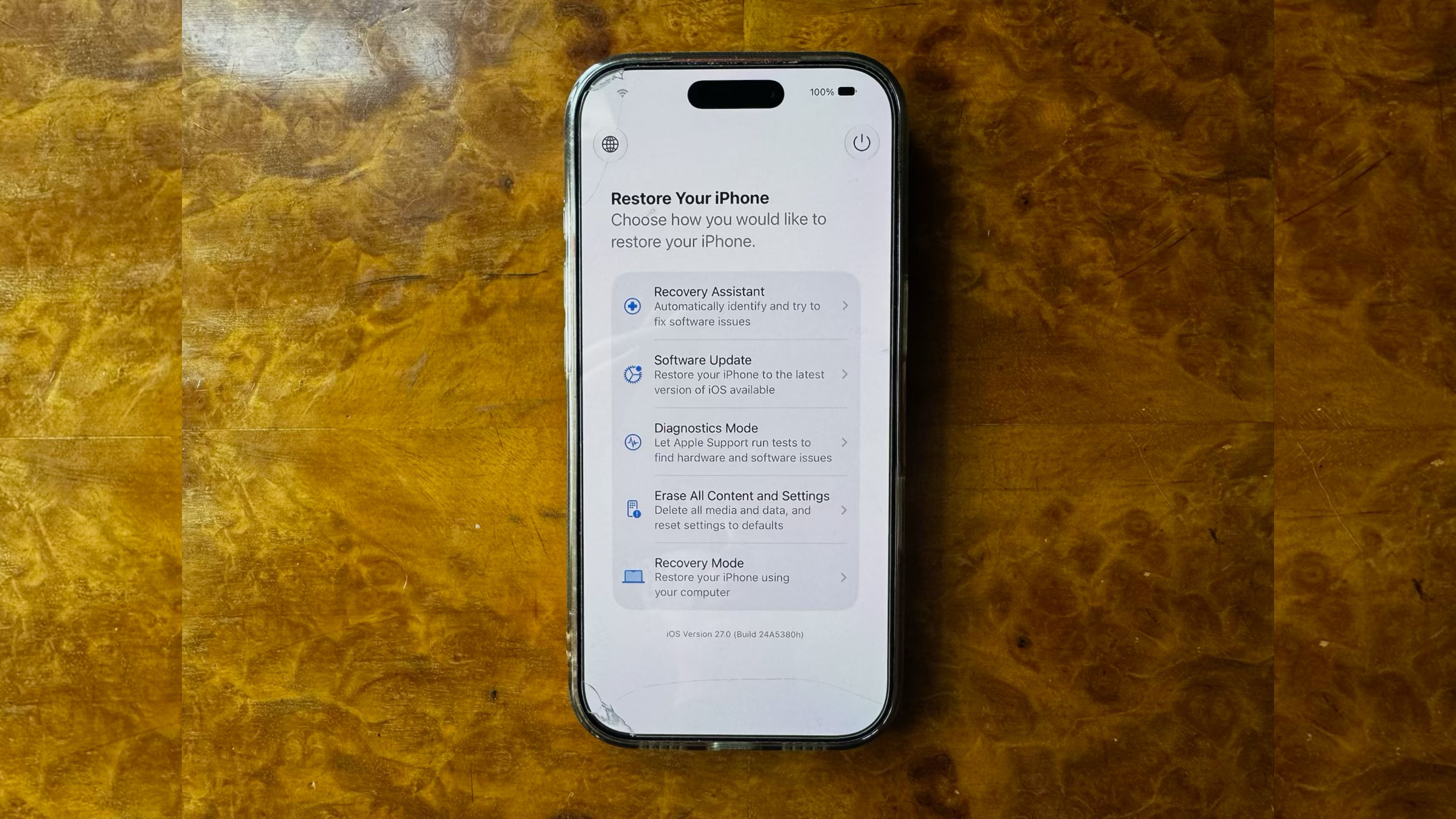
The new recovery screen offers a suite of tools designed to address common software and hardware issues. These options include:
| Option | Function |
|---|---|
| Recovery Assistant | Automatically scans for software issues and attempts to resolve them. |
| Software Update | Installs the latest available version of iOS, useful for fixing boot loops. |
| Diagnostics Mode | Runs tests to identify hardware or software issues and recommends repairs. |
| Erase All Content and Settings | Completely wipes the device, similar to the setting within the main OS. |
| Recovery Mode | Activates the traditional recovery mode for users who still prefer to connect to a Mac or PC. |
For newer iPhone models, a sixth, hidden option is available: Nearby Device Recovery.
By pressing and holding the Side button while in the recovery screen, users can access this menu, which allows for restoration using another nearby Apple device, a feature that previously debuted on iPhone 16 models.
Context and Availability
While the new recovery mode is intended for infrequent use—such as when a beta version causes a device to soft-lock or an update is interrupted—it represents a major practical addition to the iOS ecosystem. The feature was identified in the initial iOS 27 developer beta (build 24A55355q) following Apple’s WWDC26 event. As the software is currently in public and developer beta testing, Apple could make changes prior to the official release of iOS 27, which is expected to launch in the fall. Until then, users testing the beta can access these tools to troubleshoot their devices independently of a computer.
Related reading

GovTech Retrenches 93 Staff as Agency Shifts to In-House Product Model
The Government Technology Agency (GovTech) has retrenched 93 employees as part of a multi-phase restructuring effort intended to...

Hoka Launches Clifton Pro Running Shoe Among July’s Top Product Releases
This launch joins a wave of new consumer tech and apparel, including updated hardware from Sony and Apple,...

Google Vids Adds AI Avatars and Gemini Omni for Enhanced Video Creation
Users can now generate personalized AI avatars in Google Vids, edit photo metadata via the "Ask Photos" feature,...

Chopard Hosts Masterclass Experience at Hong Kong Watch Exhibition
The LANDMARK Perpetual Week exhibition opened in Hong Kong on September 11, 2024, at LANDMARK ATRIUM, showcasing luxury...