
Administrator protection in Windows 11 triggers Remote Desktop failures for non-administrator accounts following recent updates. Microsoft has documented error 0xC000000D and provided a temporary group policy workaround while developing a permanent fix for enterprise networks.
A routine security safeguard built into Windows 11 has created an unexpected hurdle for enterprise-managed environments. Following the release of recent software updates, businesses have discovered that non-administrator accounts can no longer connect to remote work PCs. The disruption stems from an enterprise security feature designed to limit elevated privileges, forcing IT teams to choose between maintaining strict local security baselines and keeping remote workers online.
Microsoft Documents Administrator Protection Failures
The issue surfaced after the rollout of the September 22 non-security preview update, designated KB5124010, and subsequent system patches. When non-administrator employees attempt to log into enterprise-managed Remote Desktop hosts, their sessions fail. Affected connections return error 0xC000000D alongside a precise system message: The token that was passed to the function is invalid.
Microsoft documented the problem on October 14, linking the failures directly to the preview update and subsequent packages. The disruption impacts Windows 11 versions 24H2, 25H2, 26H1, and 26H2. Standalone Windows Server installations remain unaffected by this specific validation glitch.
Microsoft opened the issue on October 13 and updated its status to “Mitigated” that morning. Technicians diagnosing similar connection breakdowns ought to verify the applied Windows patches, validate the stated error, and check whether Administrator protection remains turned on prior to altering any policies. These checks help identify computers that match Microsoft’s description of the problem. Microsoft has identified the affected configuration but has not explained the underlying token-validation failure. An upcoming Windows patch will deliver the definitive fix, with additional details forthcoming according to Microsoft’s latest release-health advisory.
How Security Baselines Trigger the Error
The root cause lies in how Administrator protection manages powerful system permissions. The feature operates by creating a separate, temporary administrator token only after a user approves an administrative task, deleting that token once the process finishes to block unauthorized changes. Although disabled by default on consumer installations, Administrator protection is automatically enabled in Microsoft’s security baselines for Windows 11 versions 24H2, 25H2 and 26H2 unless IT administrators manually override the policy. Microsoft’s updated 26H2 security baseline also recommends testing the configuration against business needs.
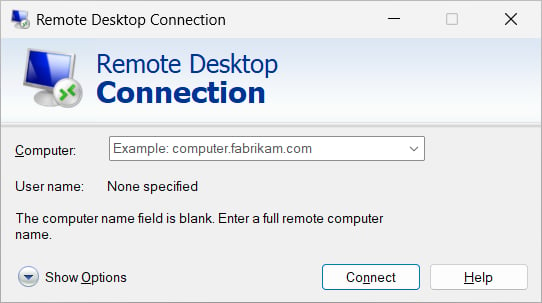
When organizations deploy these baselines without modification, remote sessions initiated by standard users trigger the invalid token error. Cyber Security News previously covered separate Remote Desktop credential prompt failures. Administrators should not assume those earlier fixes address this issue.
Intune and Group Policy Workarounds for IT Administrators
While engineers work on a permanent resolution, Microsoft has outlined a temporary remediation path for enterprise environments. System administrators can restore connectivity by adjusting User Account Control settings across affected hosts using Microsoft Intune or Group Policy. IT staff are instructed by Microsoft to temporarily turn off Administrator protection on impacted Remote Desktop servers using their current administrative platforms. The workaround requires resetting the User Account Control Type Of Admin Approval Mode
policy through Microsoft Intune or Group Policy. Administrators should confirm the error code, installed updates and security configuration before making changes.
- Go to Computer Configuration within Group Policy, moving through Windows Settings, Security Settings, Local Policies, and Security Options.
- Locate the policy titled
User Account Control: Configure type of Admin Approval Mode
. - Change the value from Administrator protection (assigned value 2) back to legacy Admin Approval Mode (assigned value 1). Microsoft’s policy documentation assigns value 1 to legacy mode and value 2 to Administrator protection.
- Restart the affected Remote Desktop host to apply the configuration change. A restart is required.
Because this adjustment rolls back a key endpoint safeguard, IT teams should limit changes strictly to impacted hosts, document the temporary exceptions, and plan to reinstate Administrator protection once an official patch arrives. In the meantime, IT departments ought to keep track of advisory updates, keep a record of any short-term policy adjustments, and re-enable Administrator protection once a verified patch becomes available.

King Charles Settles Repair Costs for Andrew Mountbatten-Windsor
King Charles III provided £1.5 million from his private income to settle repair costs for Andrew Mountbatten-Windsor’s former...

Oscar-winning actress Hilary Swank Announces Surprise Pregnancy
Oscar-winning actress Hilary Swank announced on Wednesday, October 14, 2026, that she is expecting her third child with...

Sony Adds 9 Games to PlayStation Plus Game Catalog in October 2026
Sony Interactive Entertainment announced its October 2026 PlayStation Plus lineup, bringing nine titles to the Game Catalog starting...

BBC Announces Two-Part J.K. Rowling Documentary Series
BBC Factual and BBC Scotland have commissioned a two-part documentary series examining J.K. Rowling’s literary success and her...